
COMPANY
DURATION
3 months
MY ROLE
UX/UI Designer
ACTIVITIES
User interviews / Information architecture design / UI design / Prototyping / Usability testing
OVERVIEW
The SVL Simulator is made up of two apps that work together to run simulations. The first one is a web app – it's where you create and manage your simulations and assets. You can also use it to review results and share completed simulations. The second is a desktop app, designed to run and visualize simulations in real time on your computer. In current case study, I’ll walk you through the process of designing the desktop application.
Desktop application
Based on the interviews, I put together a set of user stories that could be easily translated into real, actionable app features.
The user stories clearly highlighted the core functionality our users needed, which allowed me to quickly map out the information architecture of the future app. The overall structure turned out to be fairly simple – which is a big win. One key feature is that the simulation must be launched from the web app the first time (since that’s where it’s created), but after that, as long as all simulation files are cached locally, it can be run directly from the desktop app.
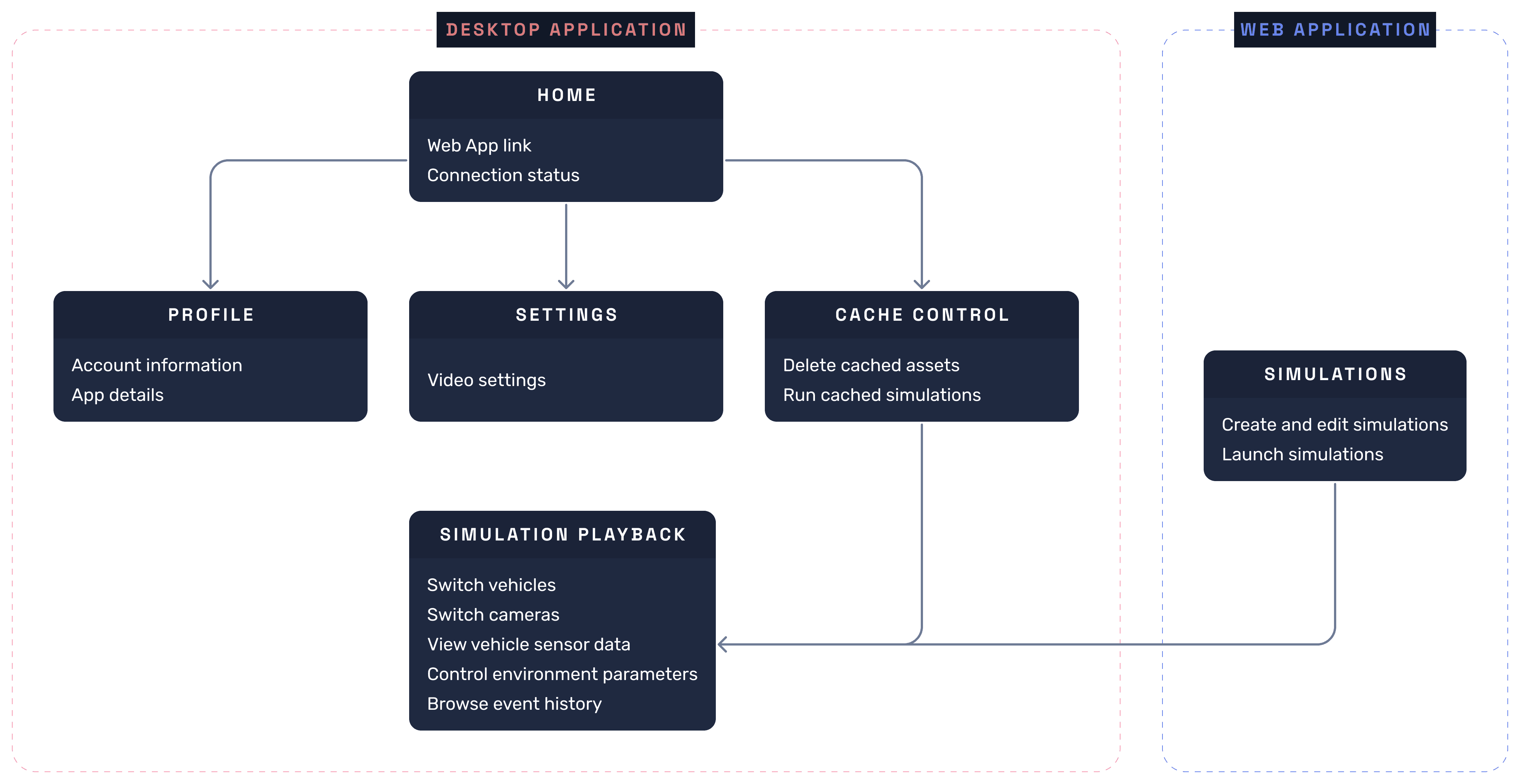
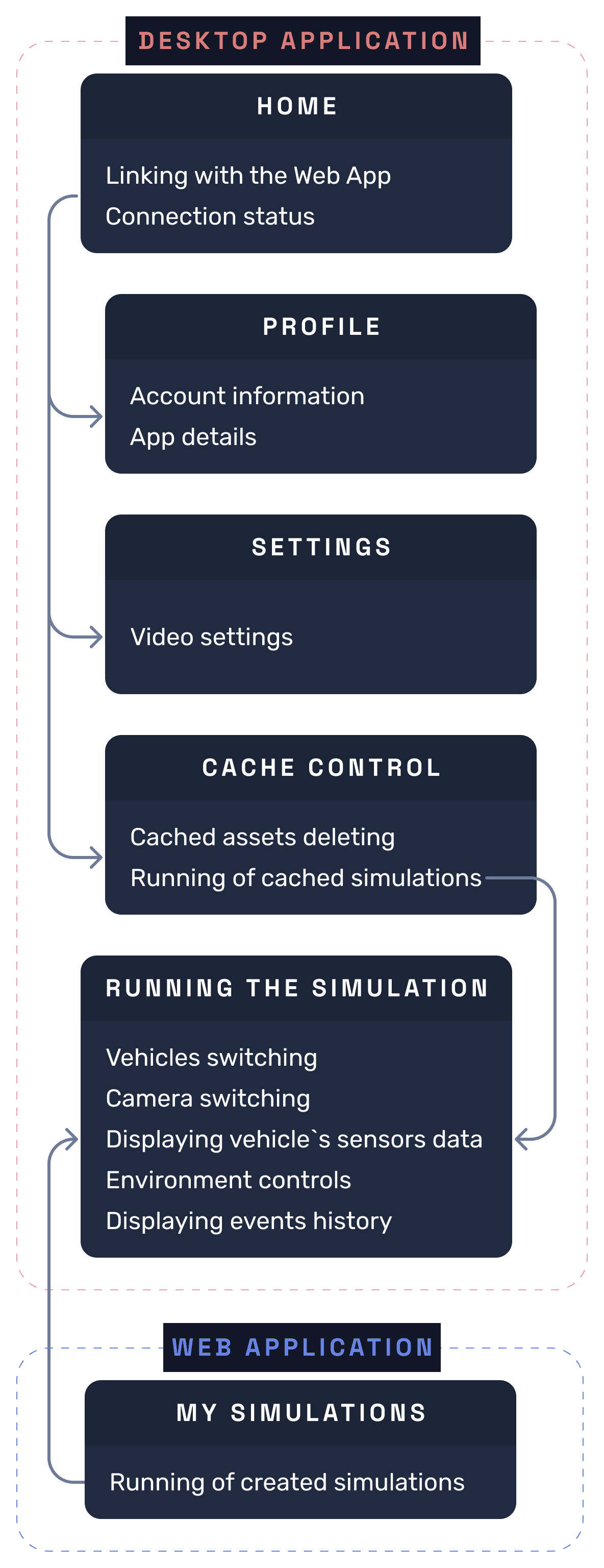
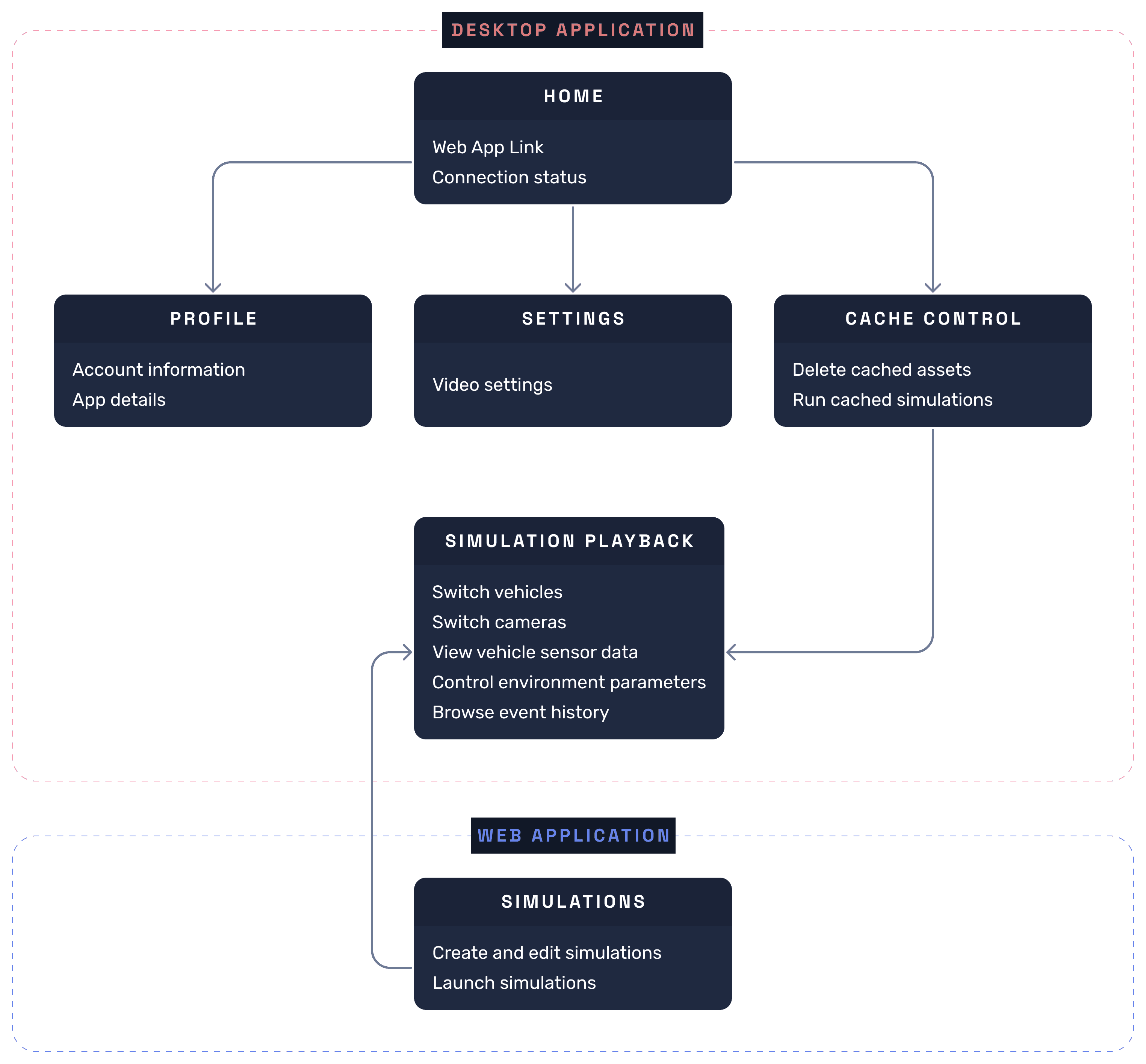
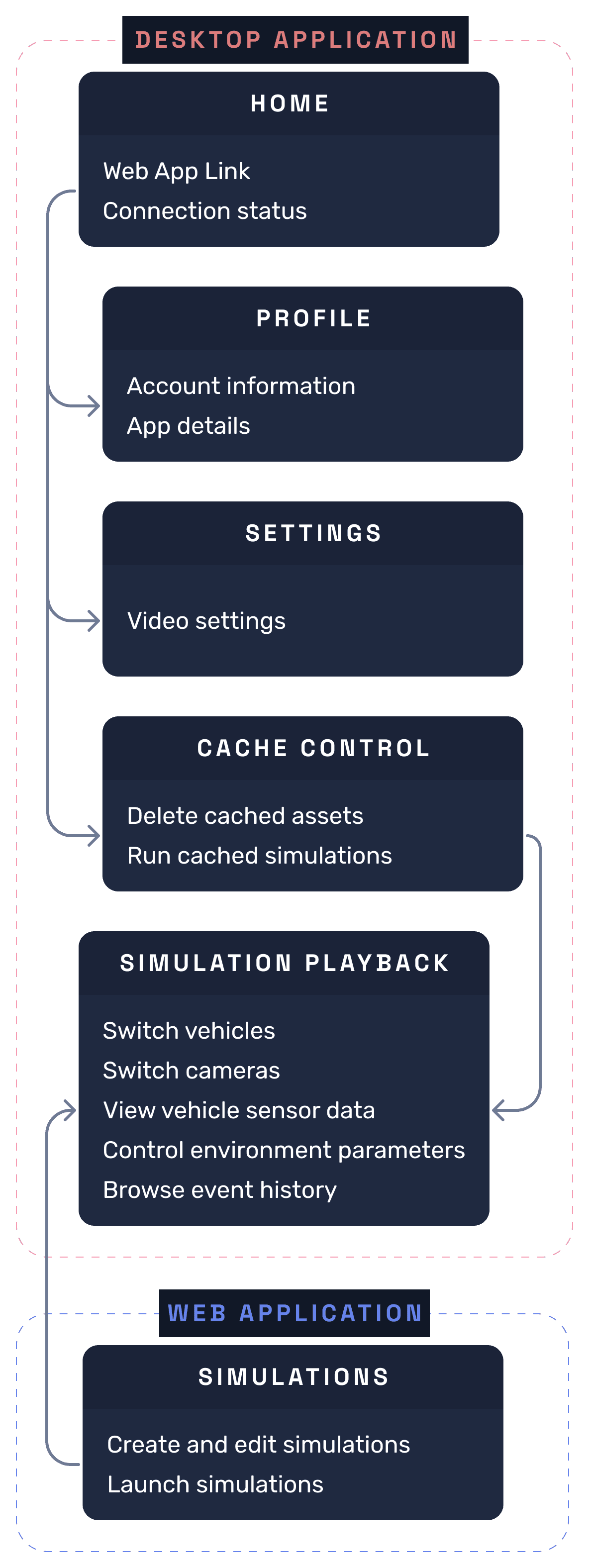
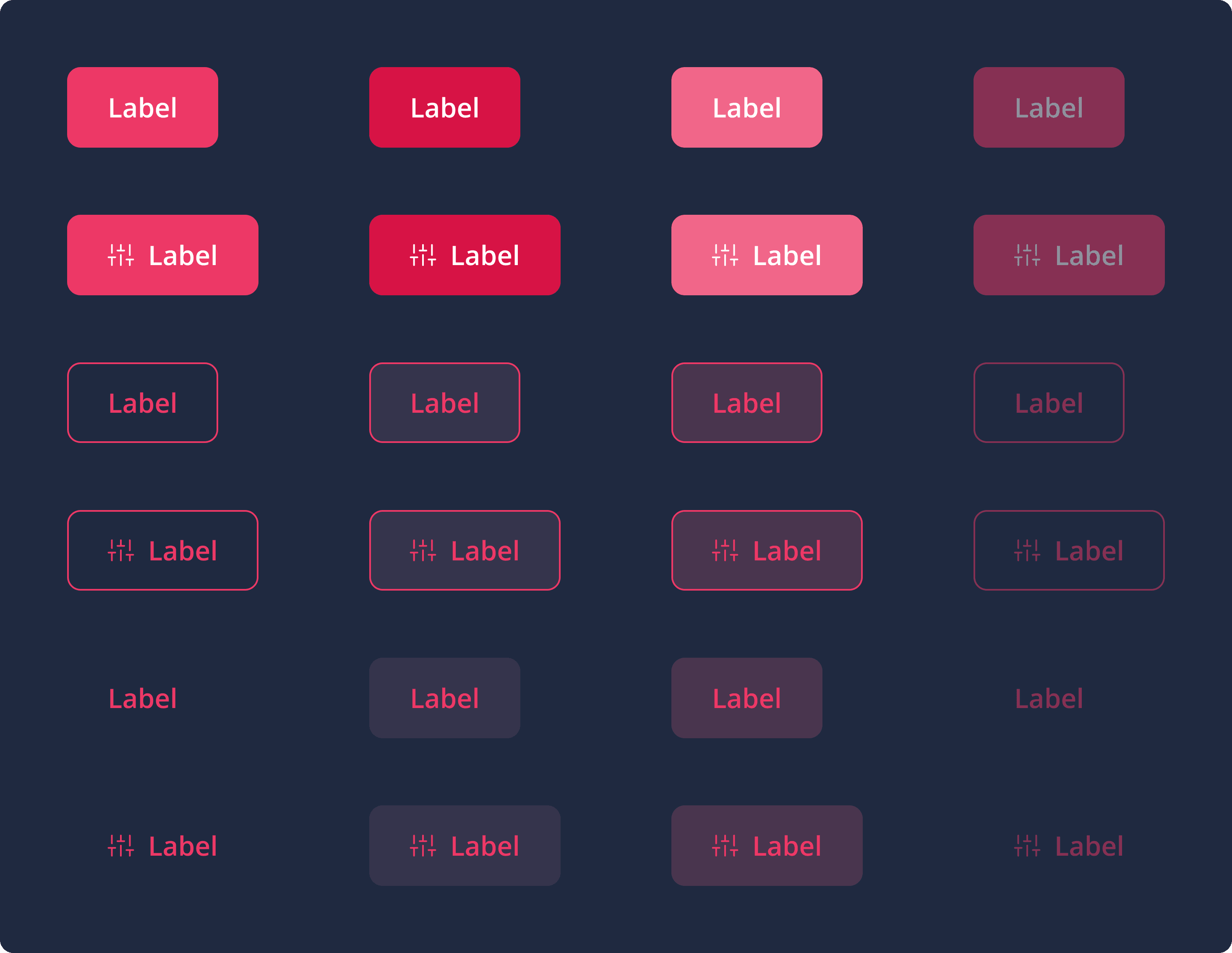
With the information architecture in place, I moved straight into designing and prototyping the desktop application. I broke down the functionality into individual user flows and designed each one step by step. Since the desktop app is just one piece of the larger SVL Simulator ecosystem, it was important to maintain a consistent visual style across all interfaces.
Luckily, I had already spent a year and a half designing the SVL Simulator web app, so I had a nearly complete design system ready to go – with all the essential components and assets in place.
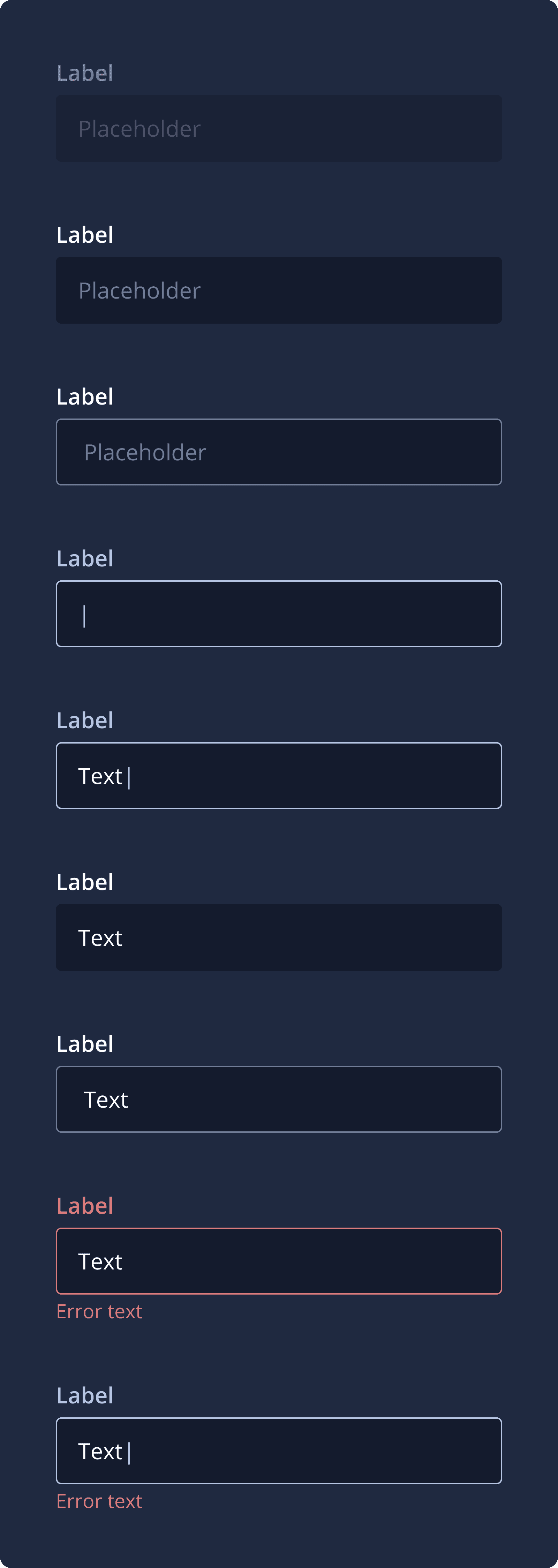
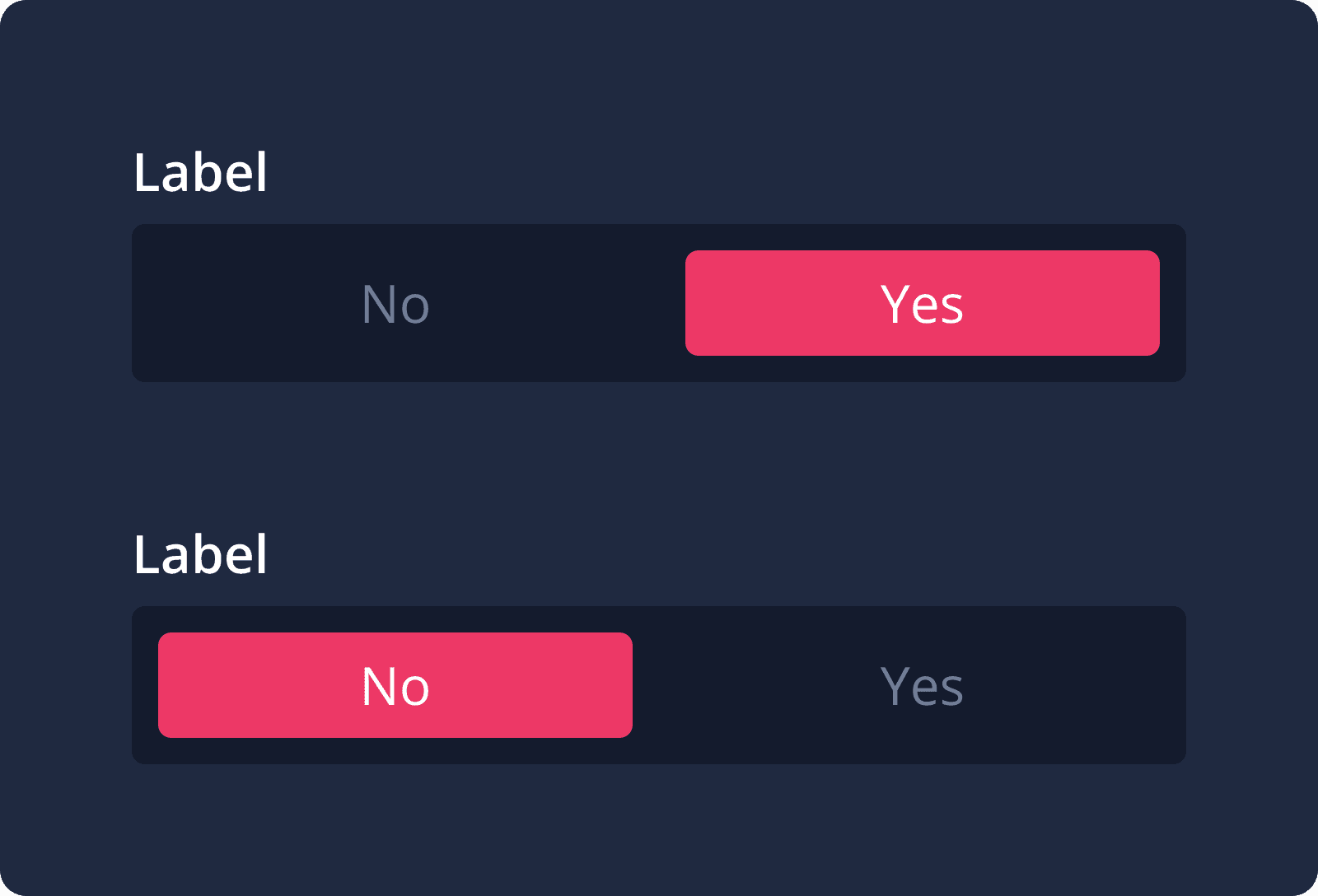
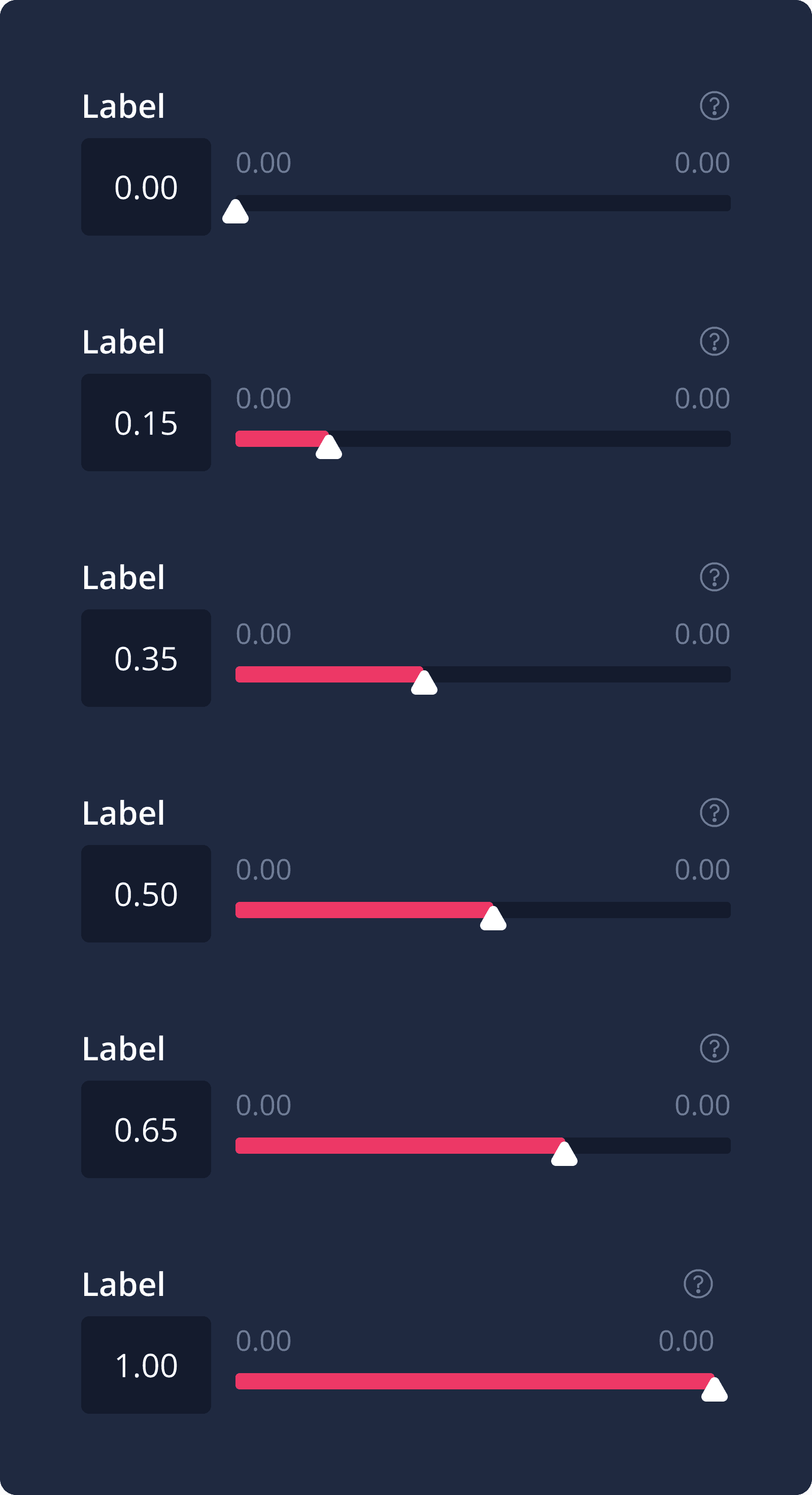
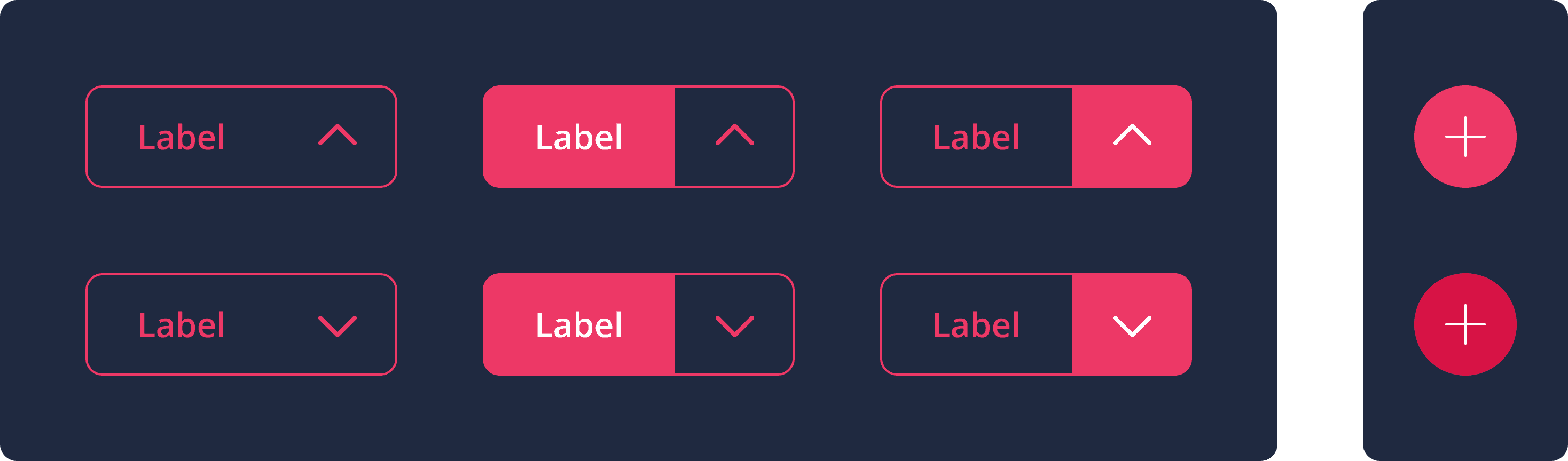


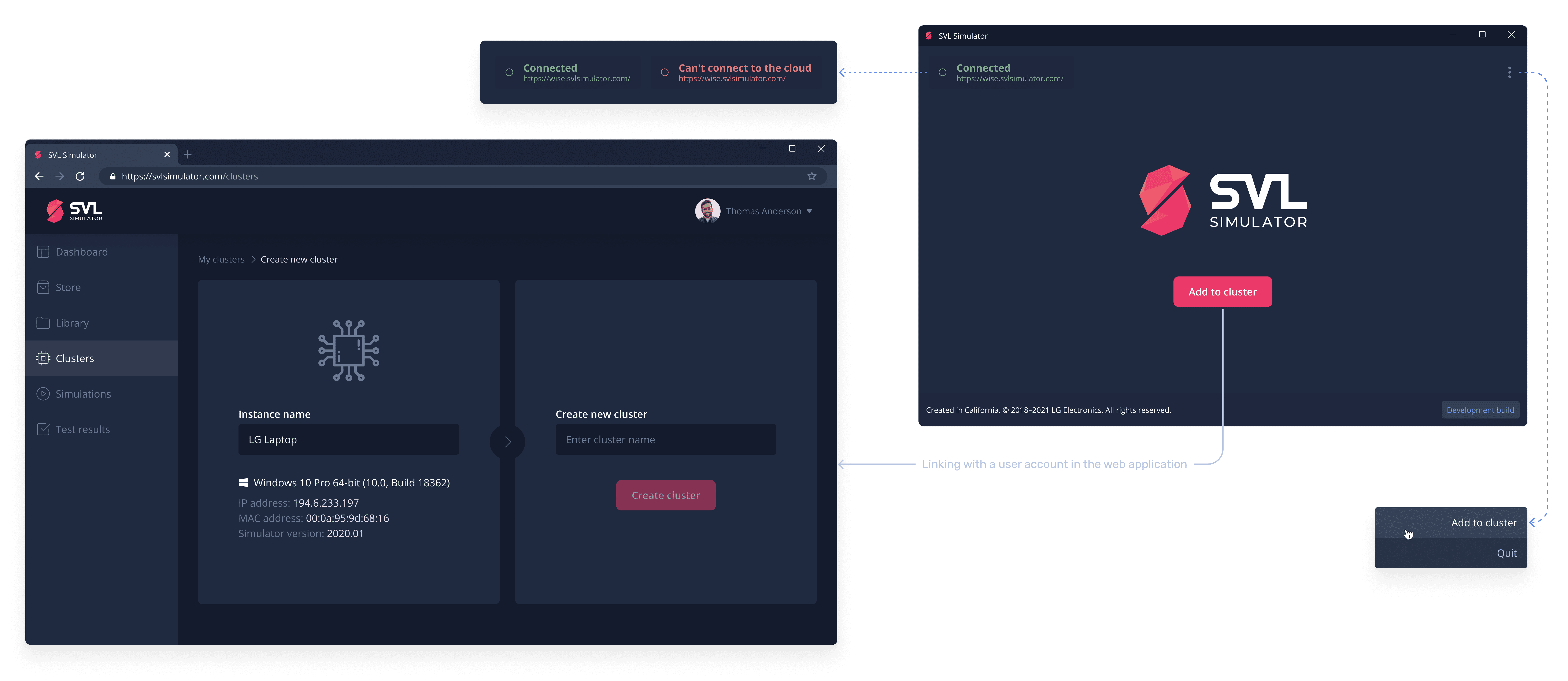
The first user flow I tackled was linking the desktop app to the web app. This connection is essential for running simulations on a PC directly from the web interface – as long as the machine is powered on and connected to our server, users can launch simulations from anywhere. Multiple PCs can also be grouped into a cluster, either local or cloud-based – that part of the setup lives in the Clusters section of the web app.
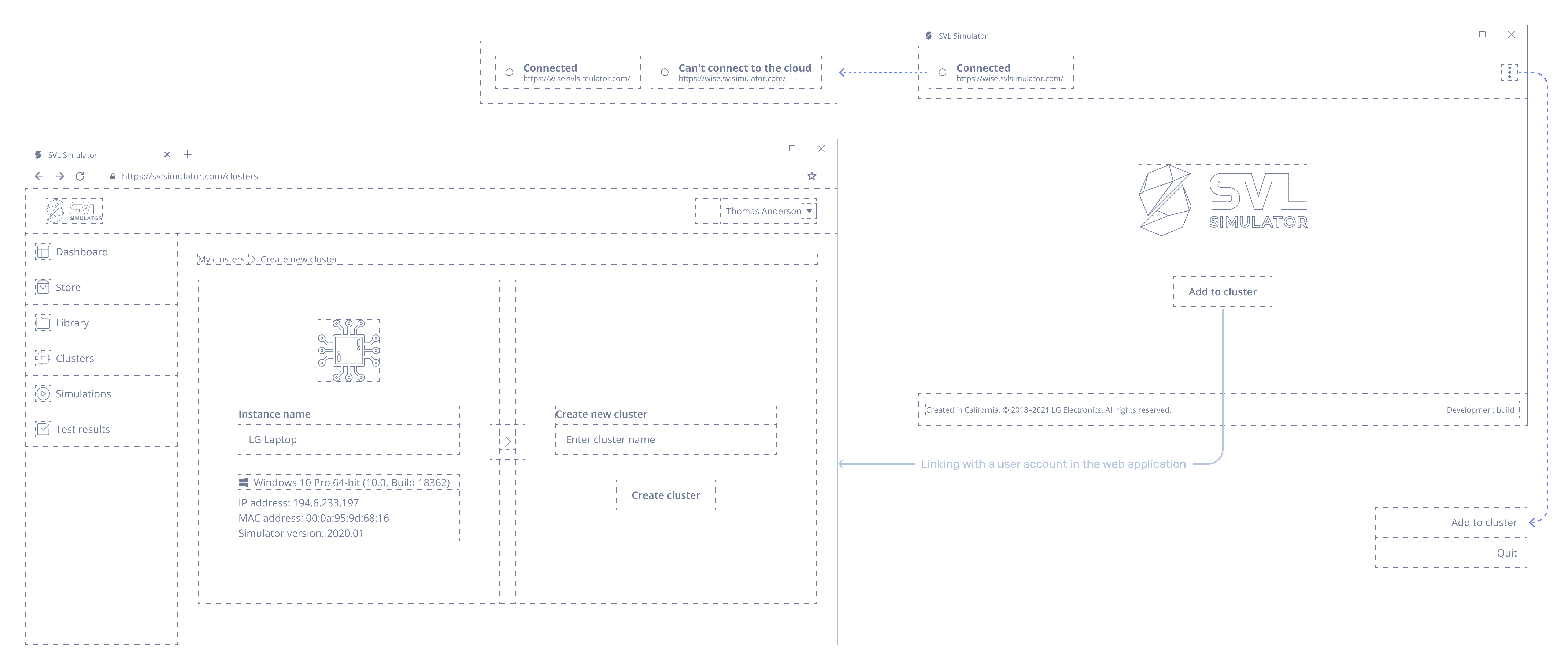
Once the two apps are linked, starting a simulation on the desktop app is as easy as a single click from the web app. Of course, the simulation has to be created beforehand – but that’s a whole other story.
During the simulation, users can control several parameters in real time. They can switch between cars (if the simulation includes more than one), change camera views, access sensor data, adjust the environment, and simulate different weather conditions. There’s also a log showing all simulation notifications and a handy keyboard shortcut guide.
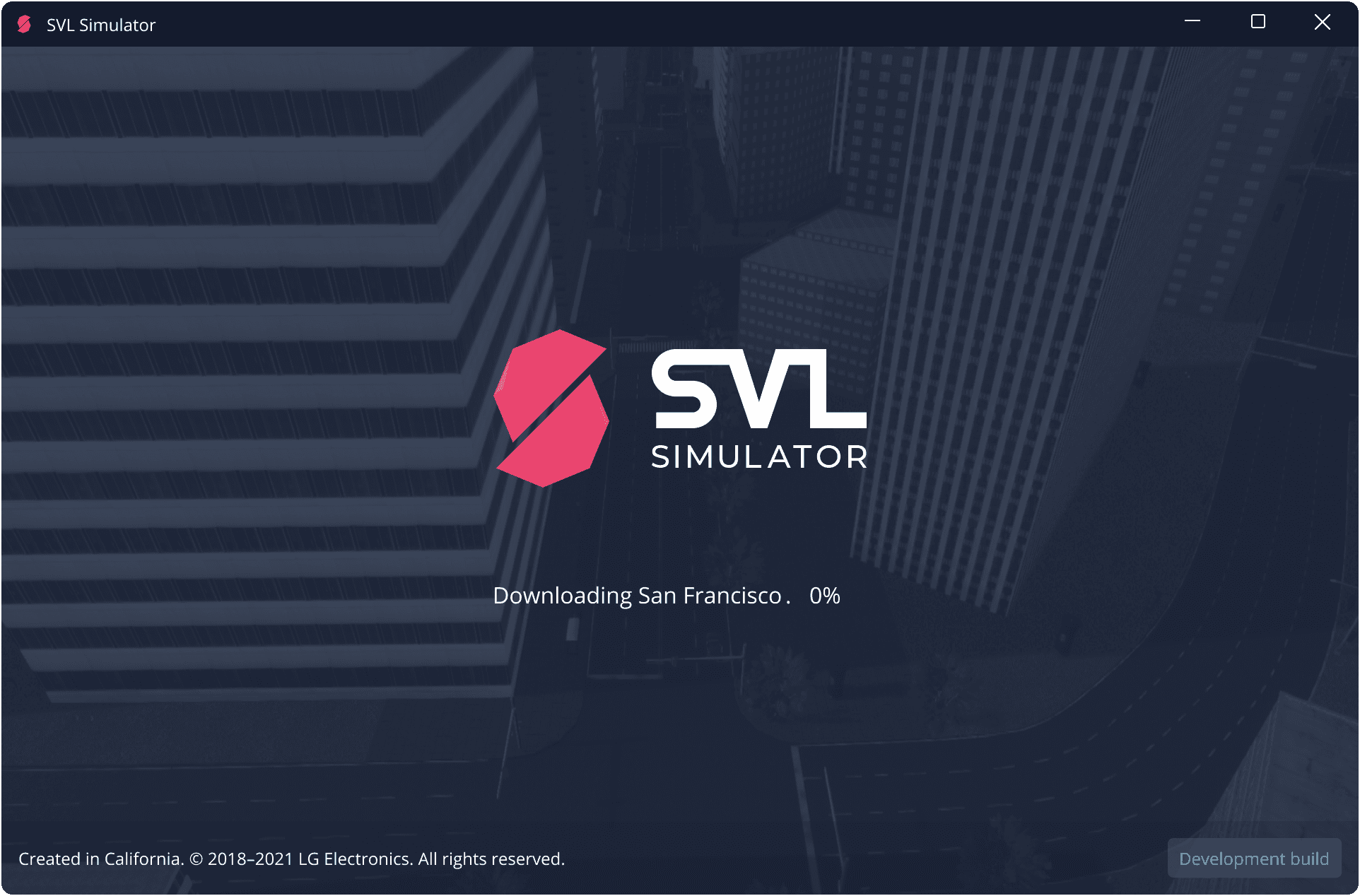
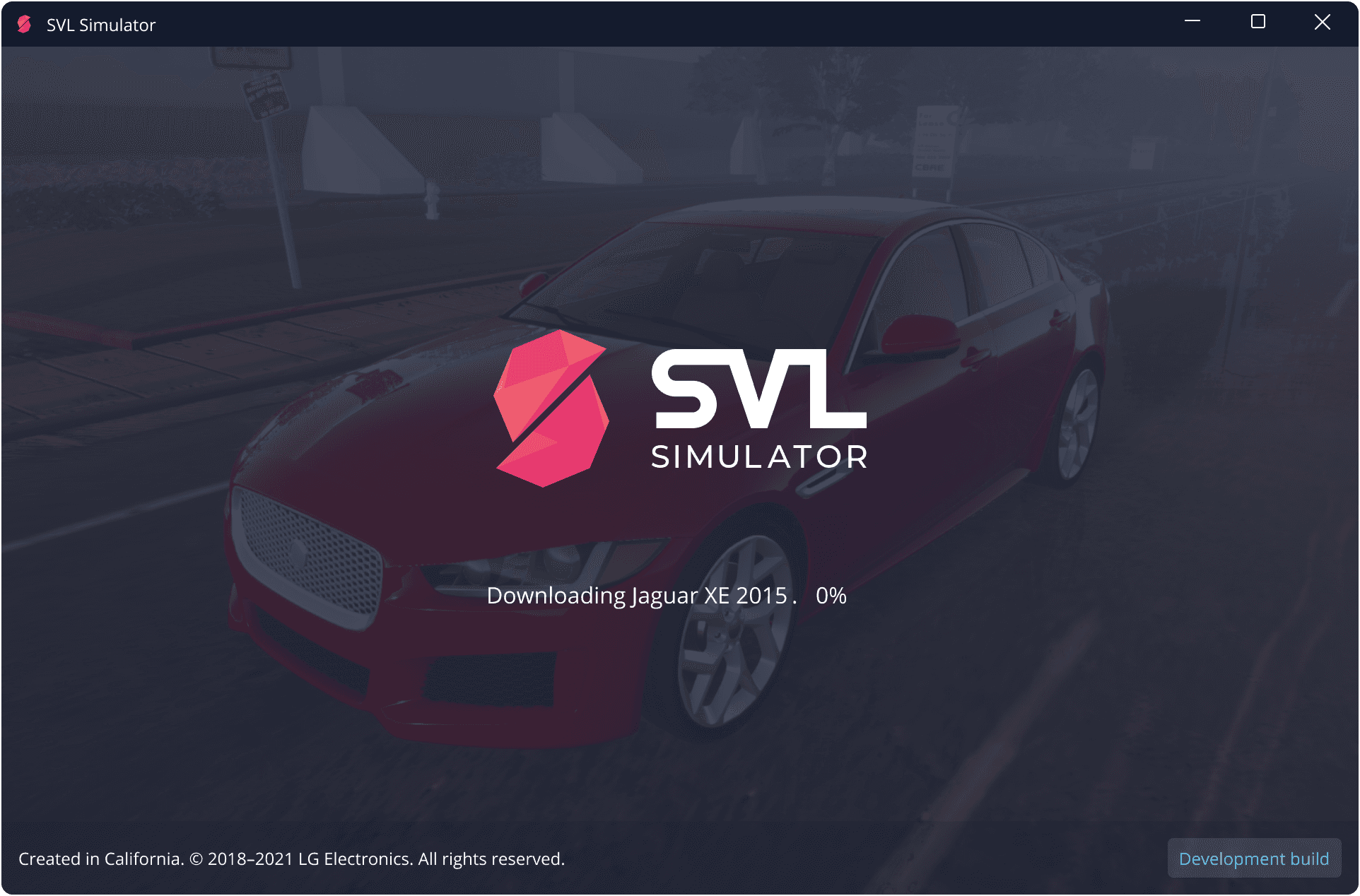
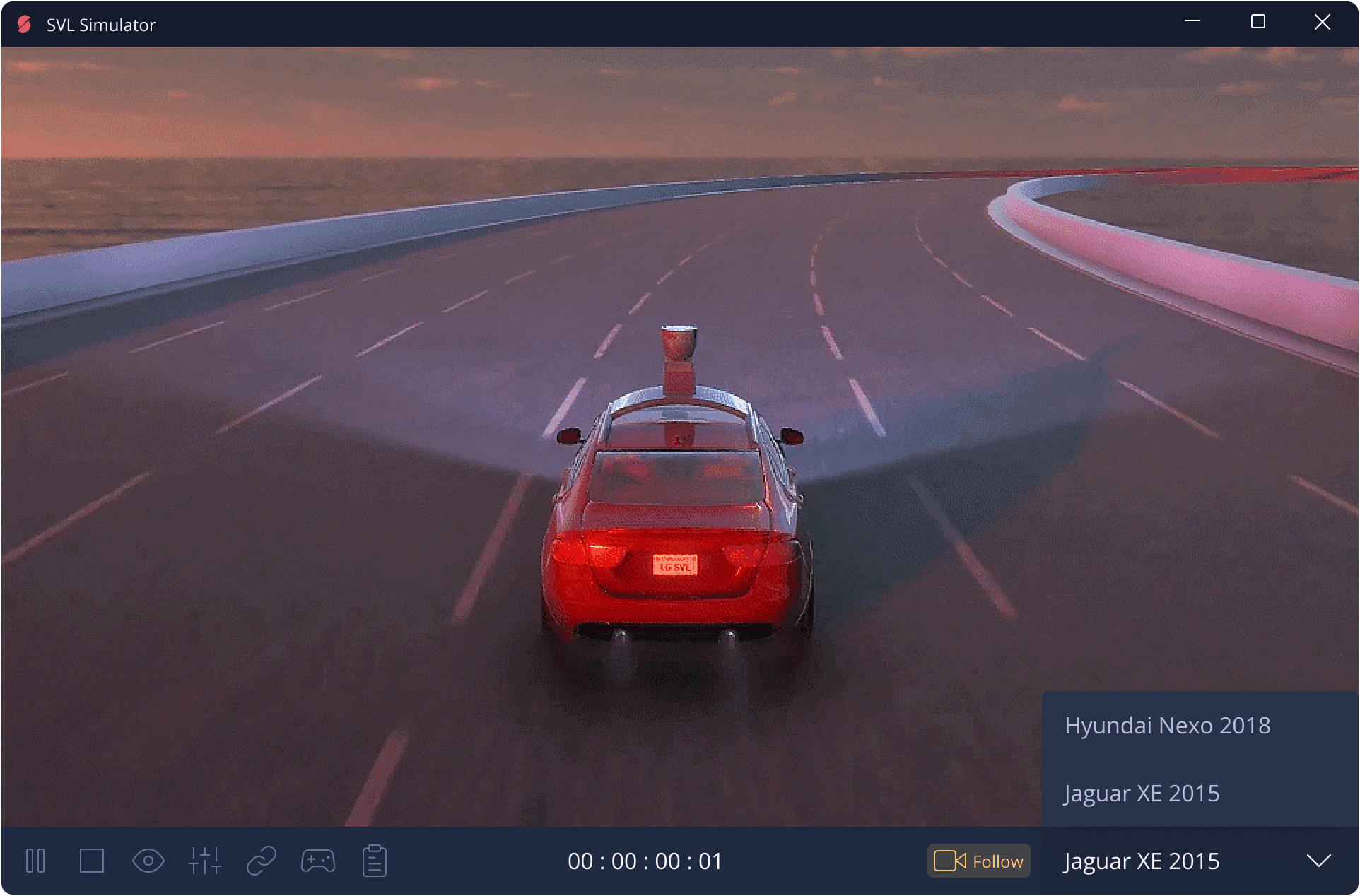
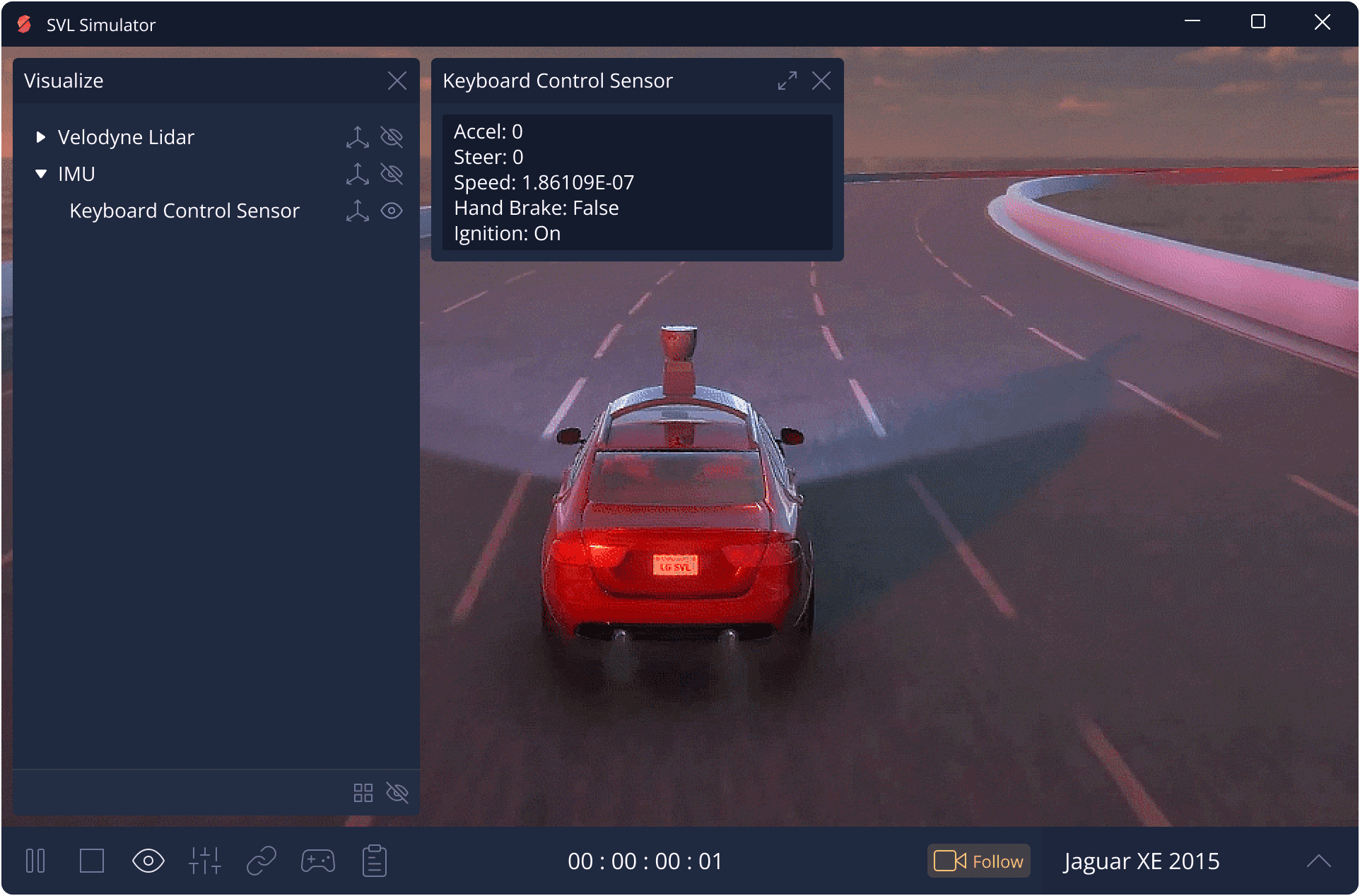
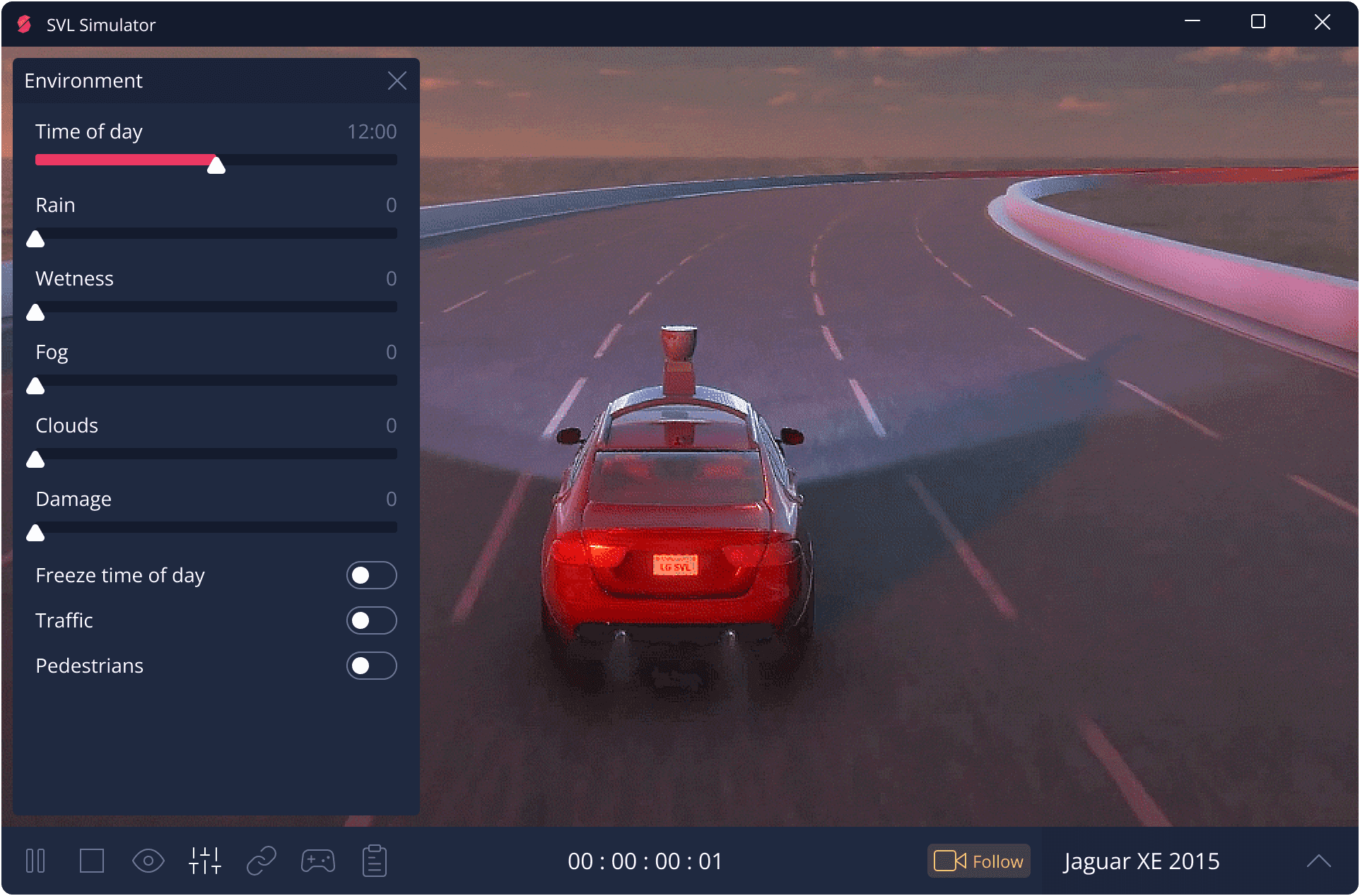
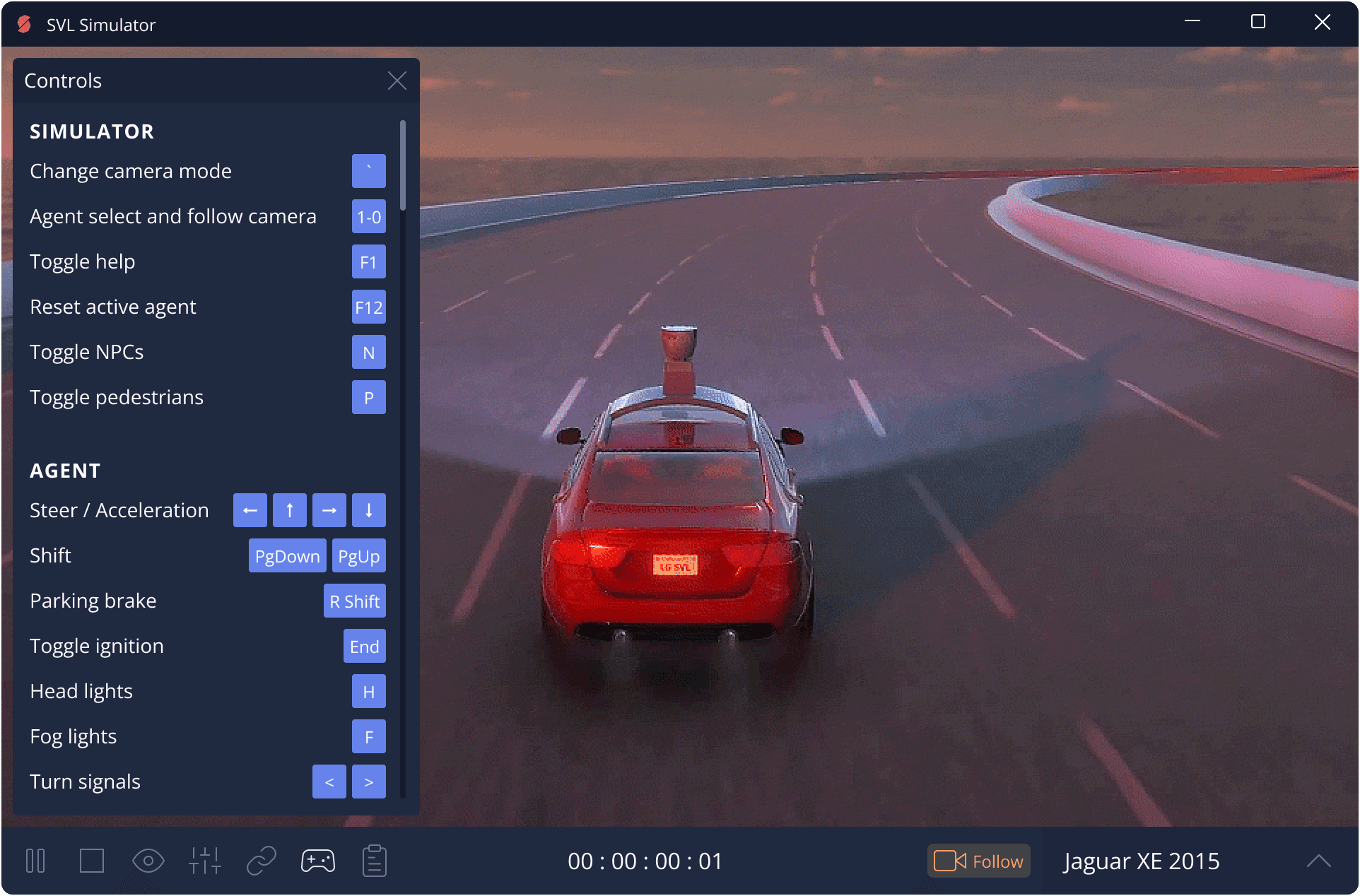
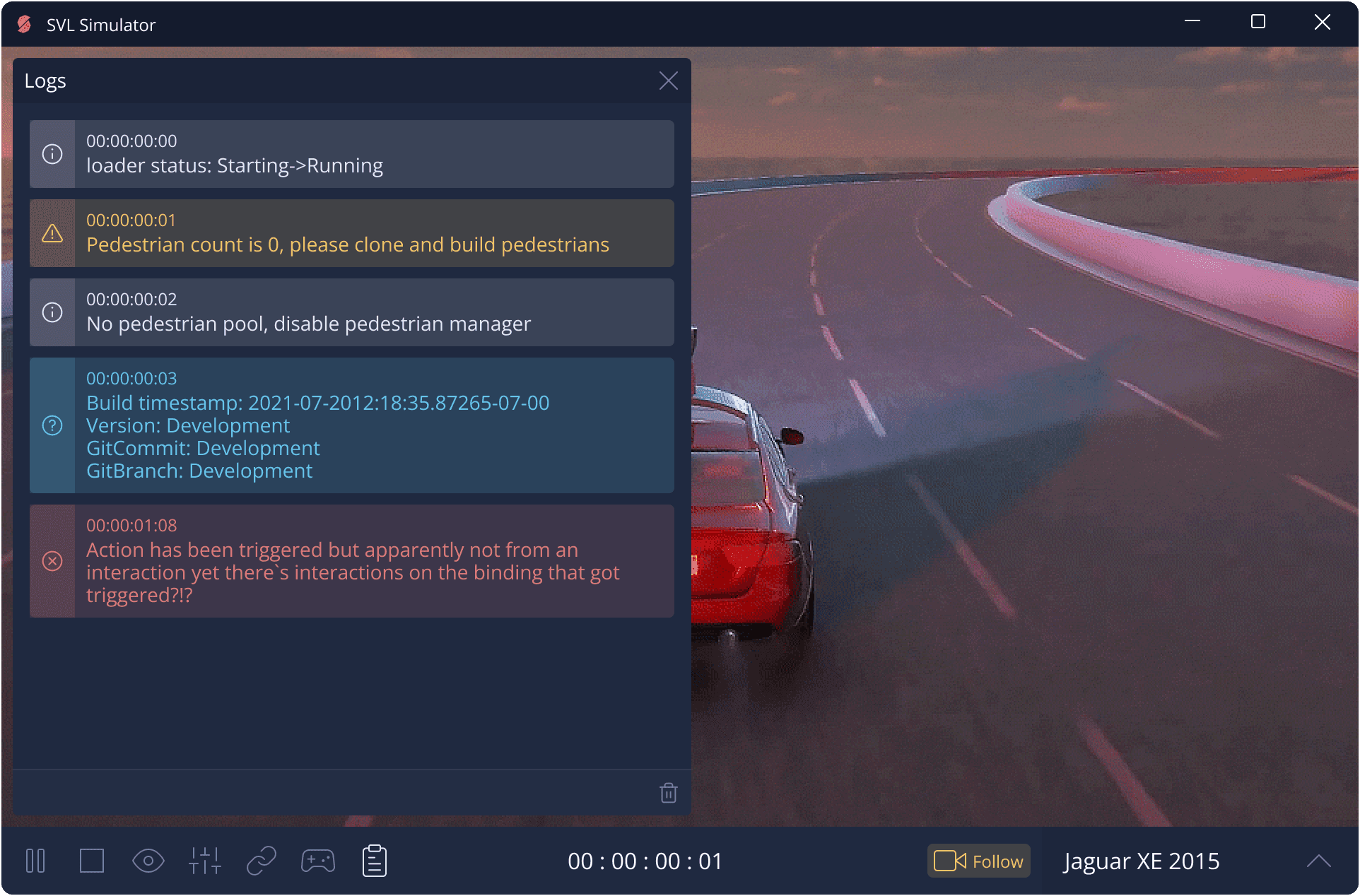
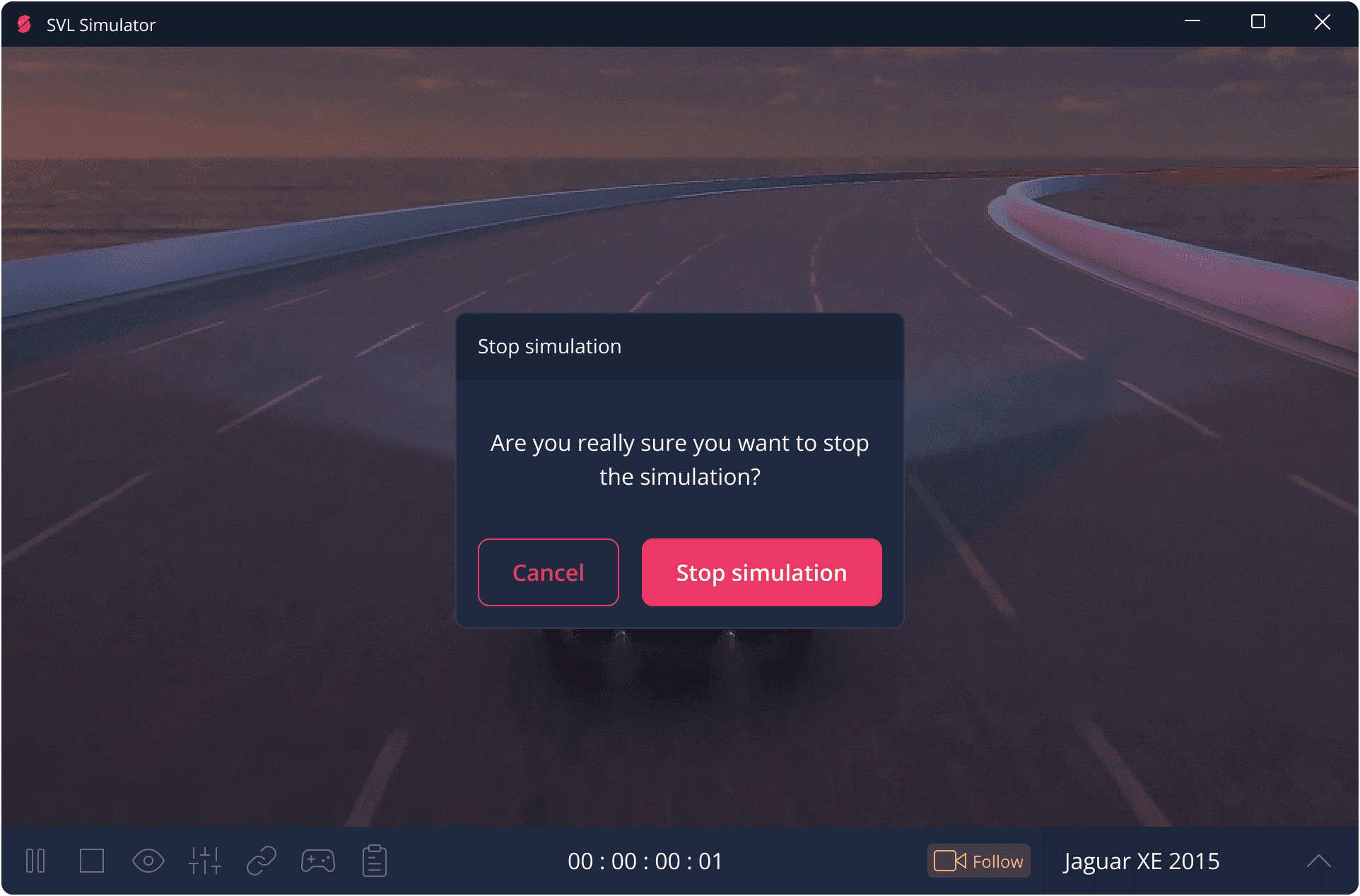
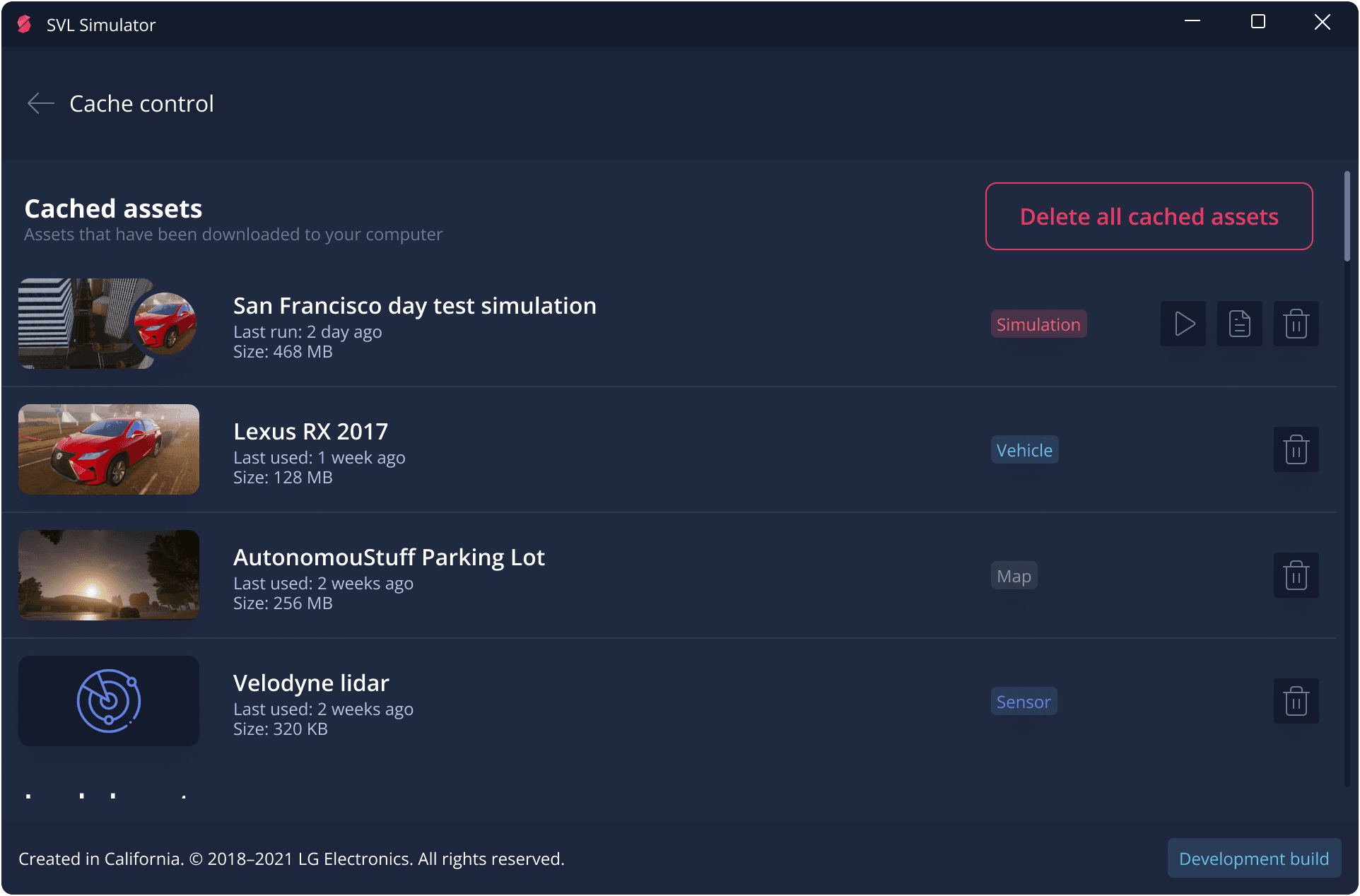
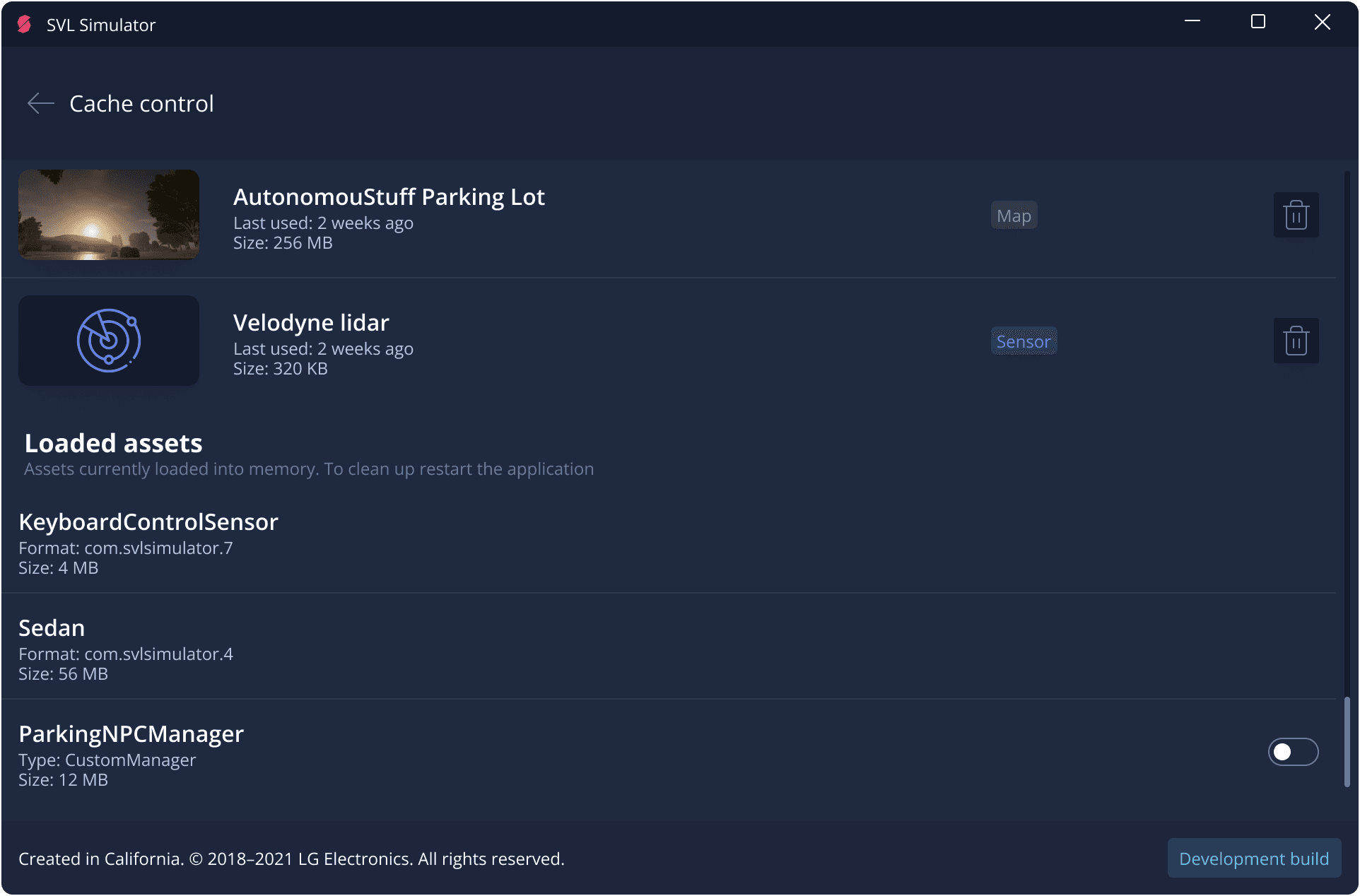
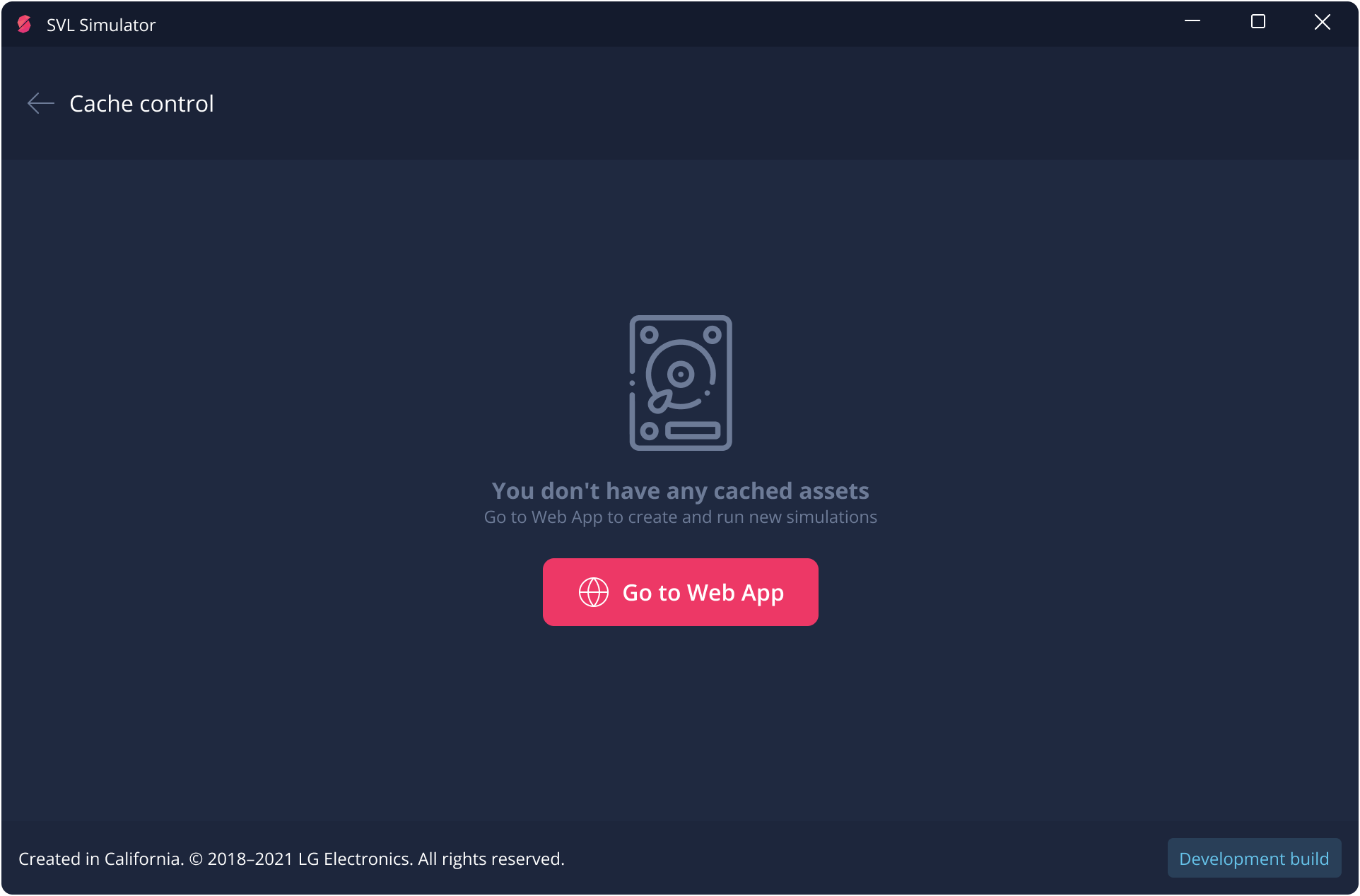
Since all simulation assets (3D car models, environment models, sensors, etc.) are stored on the web server, they’re downloaded to the user’s PC during the first simulation launch. To help users keep track of which assets are currently stored on their PC, I designed a dedicated feature for managing assets.
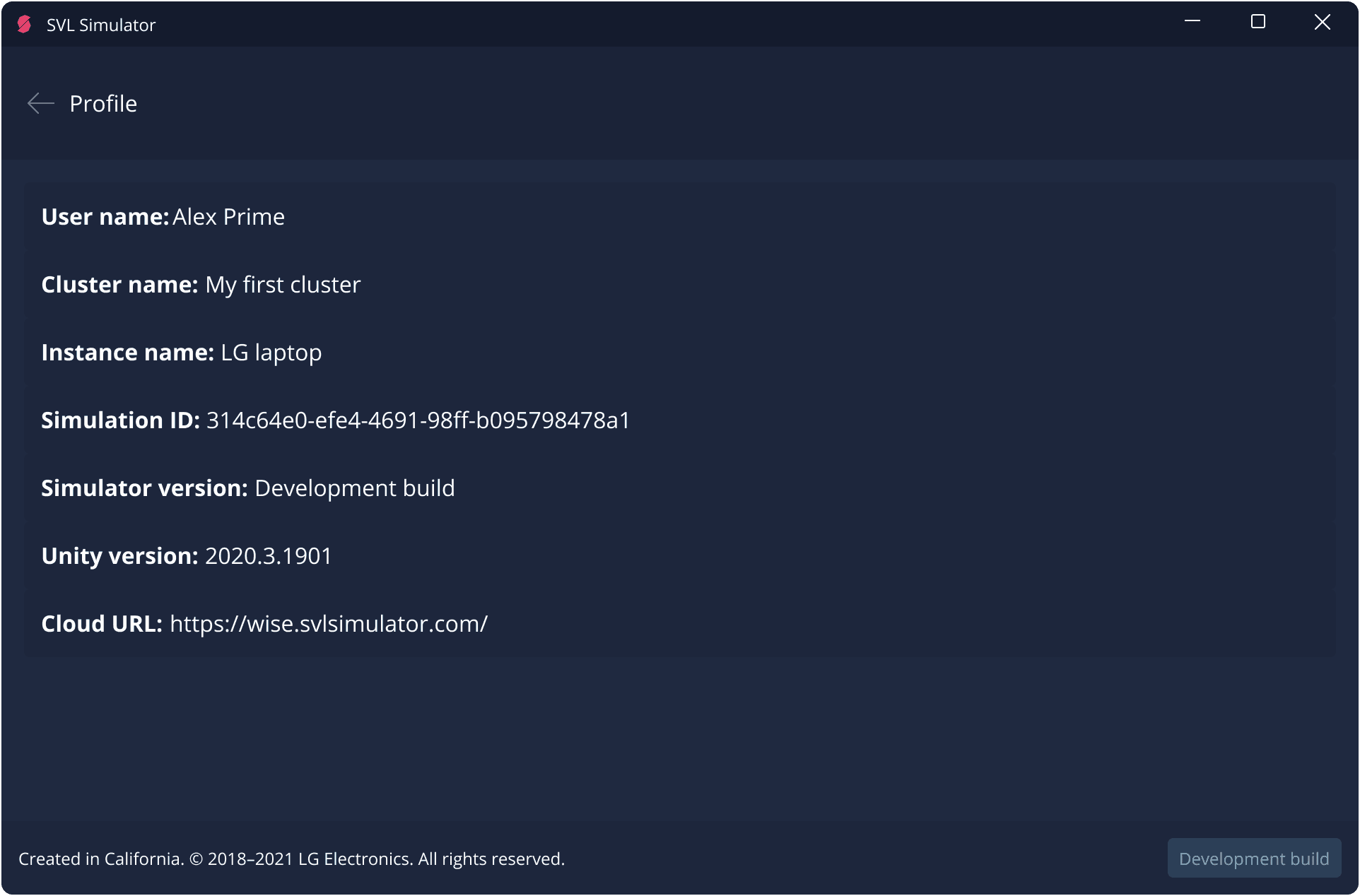
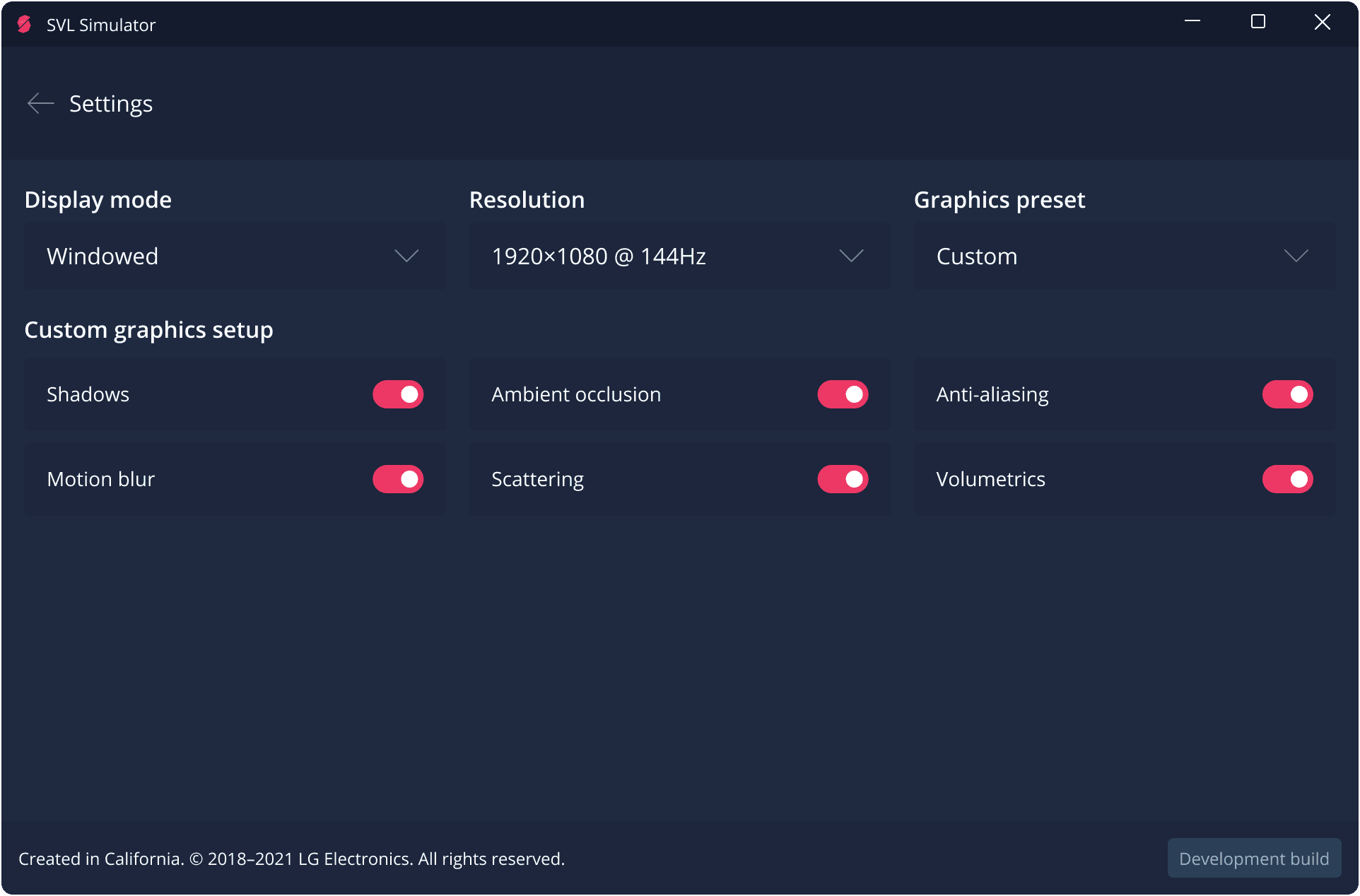
At the very end, I added features for account management, profile settings, graphics options, the ability to unlink from cluster, and more.
After rolling out the updated design of the SVL Simulator Desktop App, I saw significant improvements in key metrics:
– Setup and simulation launch times dropped by 25%, based on A/B testing with 8 engineers comparing the new interface to the previous version.
– Testing accuracy increased by 20%, thanks to the ability to simulate more complex road scenarios – this was confirmed by analyzing the number of bugs detected in test simulations over a month.
– Additionally, the improved intuitiveness and usability of the new interface boosted user satisfaction by 60%, measured through NPS surveys and post-use interviews.
This comprehensive testing approach clearly demonstrated the effectiveness of my UX decisions and their real impact on business outcomes.
launch
time
-0%
Testing accuracy
+0%
User
satisfaction
+0%